
- Details
- Category: Starting Joomla -en
XAMPP is a web server, which helps developers to create and test their programs on a local webserver.
XAMPP helps a local host or server to test its website via computers and laptops before releasing it to the main server.
It is a platform that provides a suitable environment to test and verify the working of projects based on Apache, Perl, MySQL database, and PHP through the system of the host itself.
How to install a local server in your PC
Go to www.apachefriends.org (Fig.1.1.1)> select the "XAMPP for Windows 8.2.4 (PHP 8.2.4)" > select 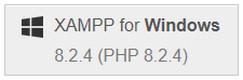 > the file xampp-windows-x64-8.2.4-0vs16-installer.exe, will be downloaded.
Double click on the downloaded file and on the window "Setup-XAMPP" that will open click "Next".
-
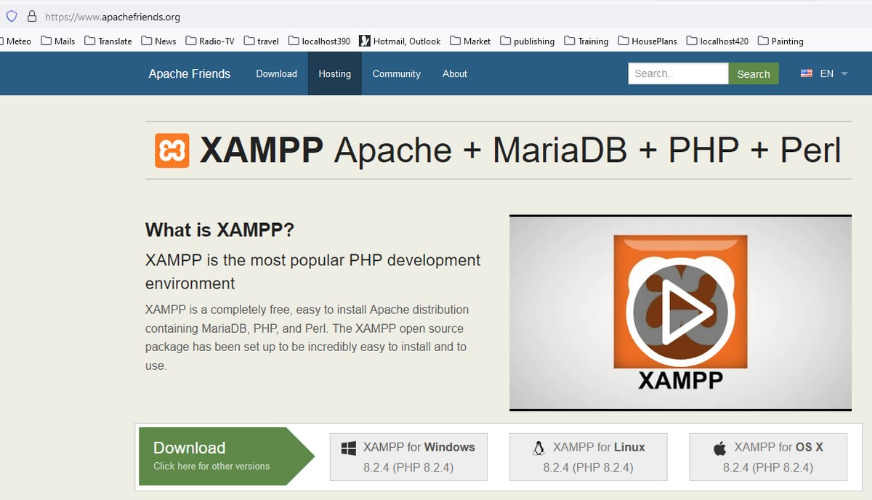
Fig. 1.1.1 - Apache friends - web site -
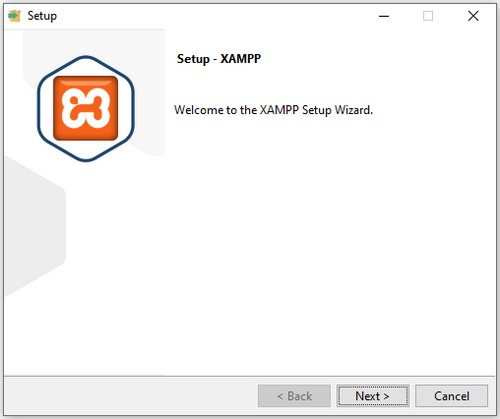
Fig. 1.1.2 - setup - XAMPP
On the "Select Components" window select "Next', and in the "Installation folder" window select the folder C:\xampp and click "Next". Select as Language English and click "Next" twice to start the installation and when it is done select "Finish" to display it on your screen.
-
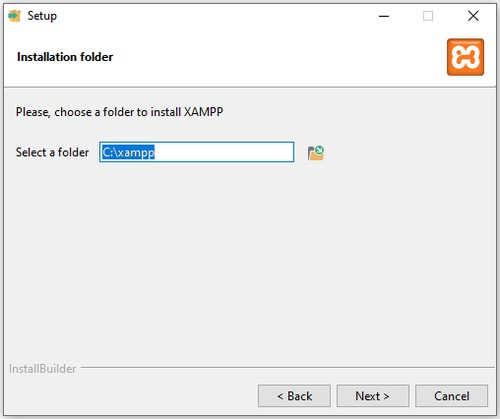
Fig. 1.1.3 - setup - XAMPP
The Xampp Control Panel v.3.3.0 created and opened on your screen. On the column "action"click the start button for Apache and MySQL.
You will notice that Apache doesn't start, it is because the default port used by Apache is 80. On Xampp control panel > click Netstat, on the panel "Netstat - PCP Listening Sockets" you will notice that that port 80 is allready used by the system. You have to choose a free port number like 8012 for this installation of Apache.
-
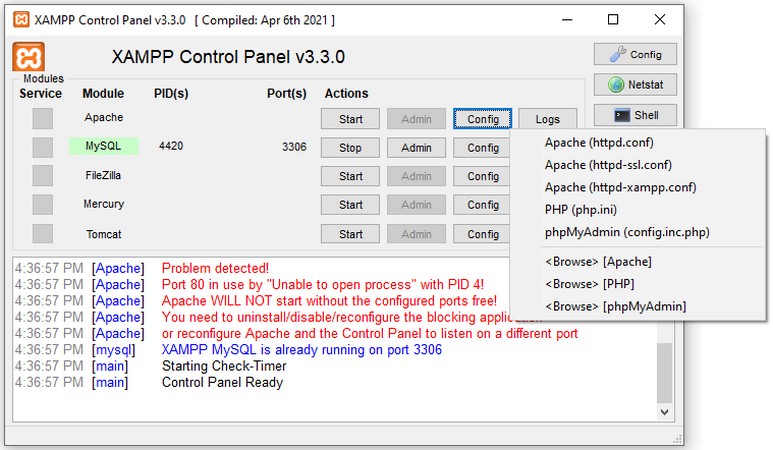
Fig. 1.1.4 - Configure Apache
You have to edtit the file of Apache "httpd.config". On Xampp Control Panel > select for Apache the file "httpd.config". On the notepad that will open this file, find and replace the text "Listen 80" with" Listen 8012", and "ServerName localhost:80" with "ServerName localhost:8012", and then save it.
Go back to Xampp Control Panel, and click again the start button for Apache andMySQL, the Apache will start and the new port number 8012 will appear.
-
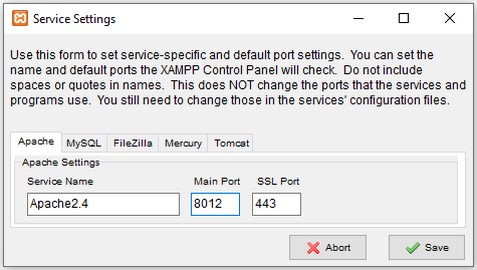
Fig. 1.1.5 - Set new Port for XAMPP
Testing XAMPP Installation
In the control panel, click on the start action for the Apache module. Open any web browser and type: http://localhost:8012 or 127.0.0.1, you should see the XAMPP screen. It means you have XAMPP installed properly on your system.
Steps to create a PHP page:-
To check whether the XAMPP server is configured correctly or not, you will create a PHP test page. This page can be stored under XAMPP's localhost and can run on the browser.
- Open the XAMPP directory present in C Drive and choose the htdocs folder > C:\xampp\htdocs. This directory contains all the data required to run a web page.
- Open notepad and type the following code <p>XAMPP Server runs successfully</p>
and save the file in the htdocs folder. - Make sure you have saved the file with .php extension.
- Open your browser and type localhost:8012/xampp-test.php in the URL tab.
- If your browser prints 'XAMPP Server runs successfully', it means XAMPP is successfully installed and correctly configured.