
Downloading Joomla software
The first step is to get the latest version of the Joomla software. To do this, go to the download page on the official Joomla website https://downloads.joomla.org, and click to download the newest version (4.3.3 in this example).
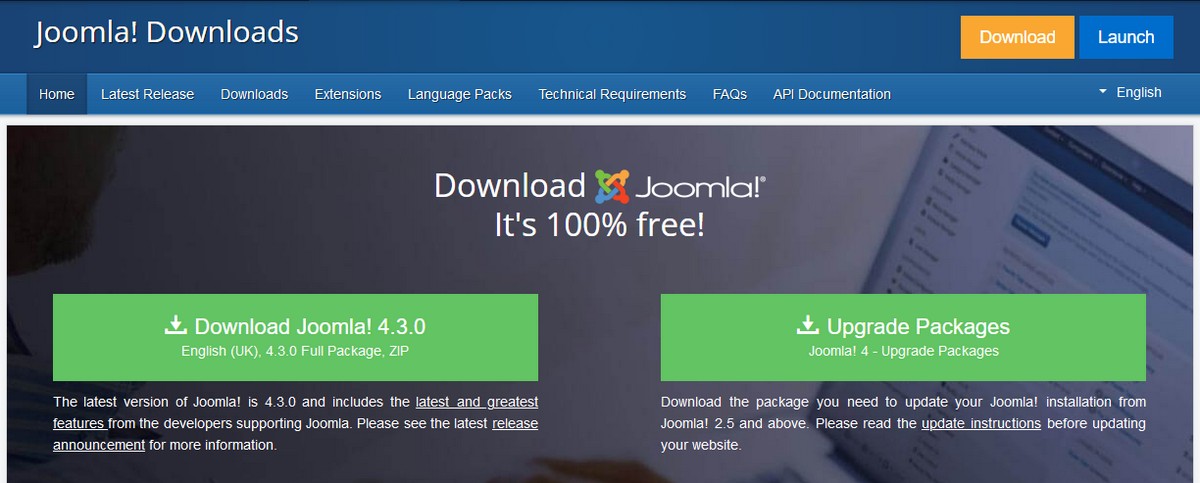
Fig. 1.2.1 - Download Joomla 4.3.0
You will download the file "Joomla_4.3.0-Stable-Full_Package.zip".
Installing Joomla 4 to local server
In your local server Xampp/htdocs root folder, create another folder with the name of your site to be created, that for this example is My Geographica. Move the downloaded Joomla installation package zip file "Joomla_4.3.0-Stable-Full_Package.zip" in your local server within the folder Xampp/htdocs/myGeographica, unzip it, and delete the "Joomla_4.3.0-Stable-Full_Package.zip" file.
Open the Xampp control panel, and run Apache and MySQL, to do this on column Actions click the button Start (Fig.1.2.2).
On your browser type the site's domain name as follow: localhost:8012/myGeographica, press Enter, and you should see the installation screen (Fig. 1.2.2).
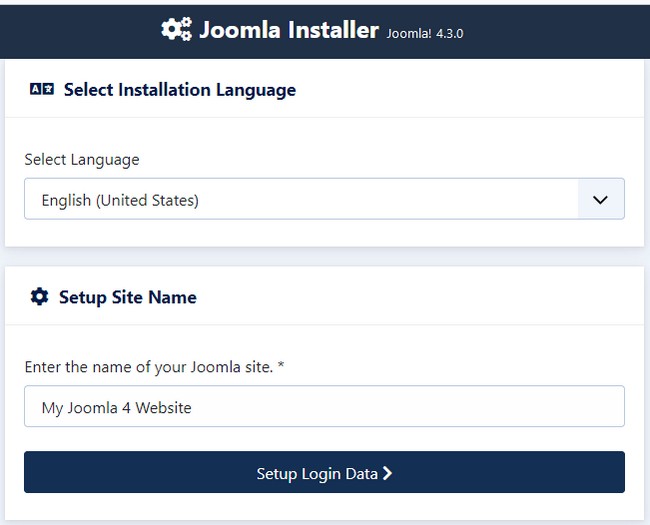
Fig. 1.2.2 - Joomla 4 Installer
Joomla will try to identify the Select Language field automaticly from your brawser's language. For the moment set as language English (United Kingdom), you can change this if needed.
In the next field Site Name, for the name of your website type My Geographica, this can be changed at any point later in the "Site Global Configuration" page.
Click the Setup Login Data button, to proceed.
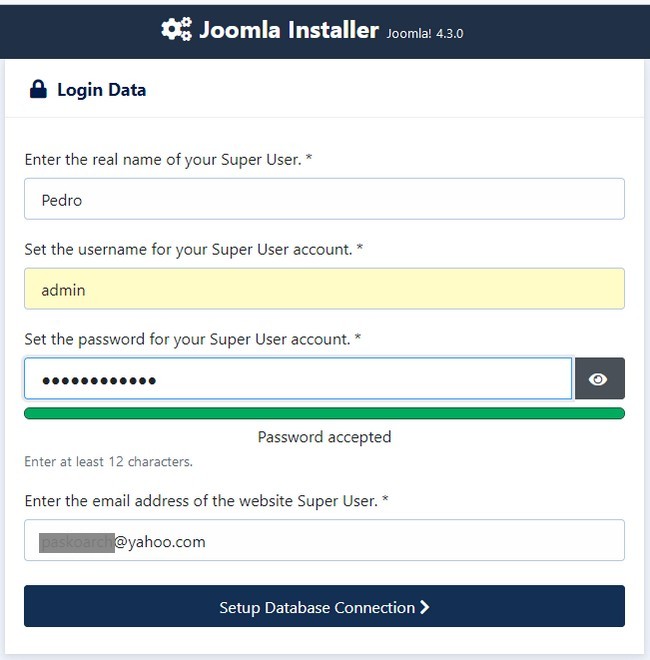
Fig. 1.2.3 - Joomla 4 - Installer - Login Data
Fill in the following information:
- For the Real Name of the Super User enter e.g. Pedro. This is how Joomla will greet you when you login.
- For the Super User Account username enter admin.
- For the Super User Password enter a password with at least 12 characters.
- For the Super User email address enter an email. In case you forget your password, you'll receive a link to change the Super User password.
When everything is complete click the Setup Database Connection to proceed.
In the next tab that will open, fill in the following information:
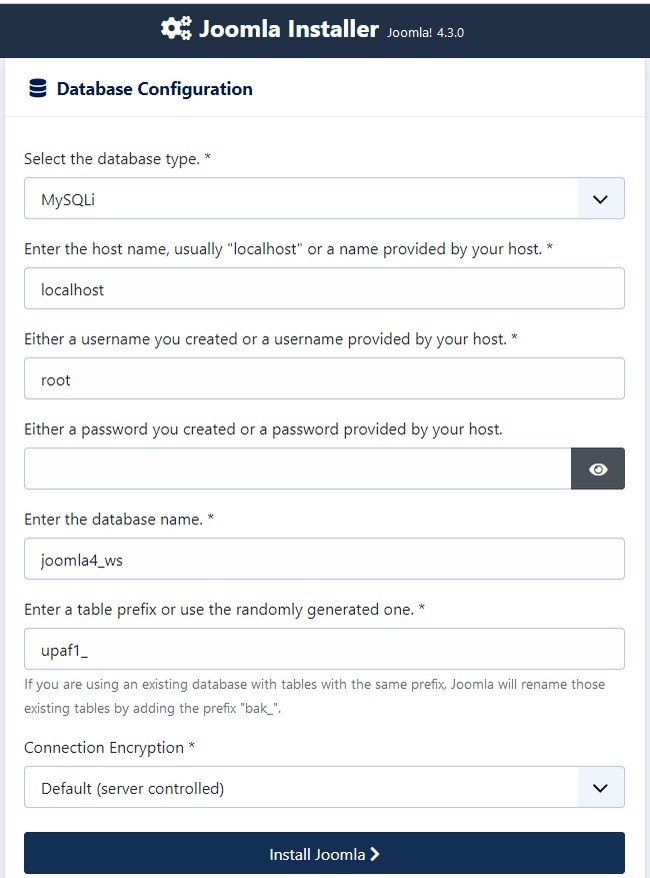
Fig. 1.2.4 - Joomla 4 Installer - Database Configuration
- For Database Type MySQL is the common database used.
- For Hostname enter localhost.
- For Username used to connect to the databasae enter root.
- For password leave it blank.
- For database nane enter myGeographica_j4.
When everything is complete click the Install Joomla button to proceed.
After you click the Install Joomla button and the installation completes you will see the success page.
If you want to use Joomla right away without installing extra languages, you can select Open Adninistraror to go to the Administrator Dashboard (Fig. 1.2.6) or select Open Site to go to the Site Home page (Fig. 1.2.6).
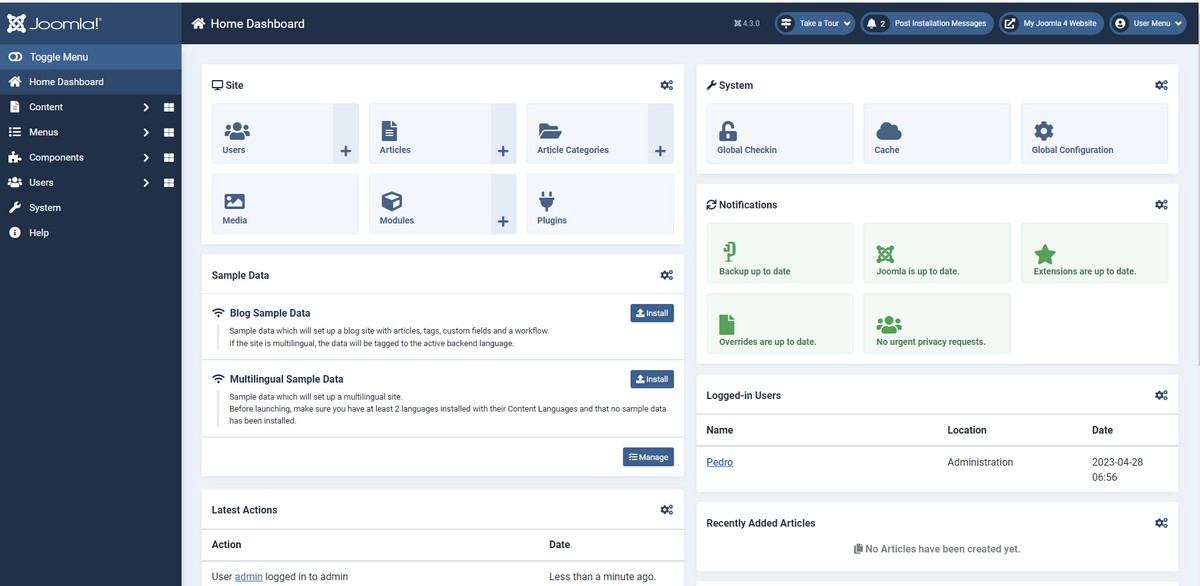 Fig. 1.2.5 - Joomla 4 - Administrator Home Dashboard
You may see a warning "Installation folder could not be delated. Please manually delete the folder'.
To do this open the folder xampp/httdocs/My locate folder "installation" and delete it.
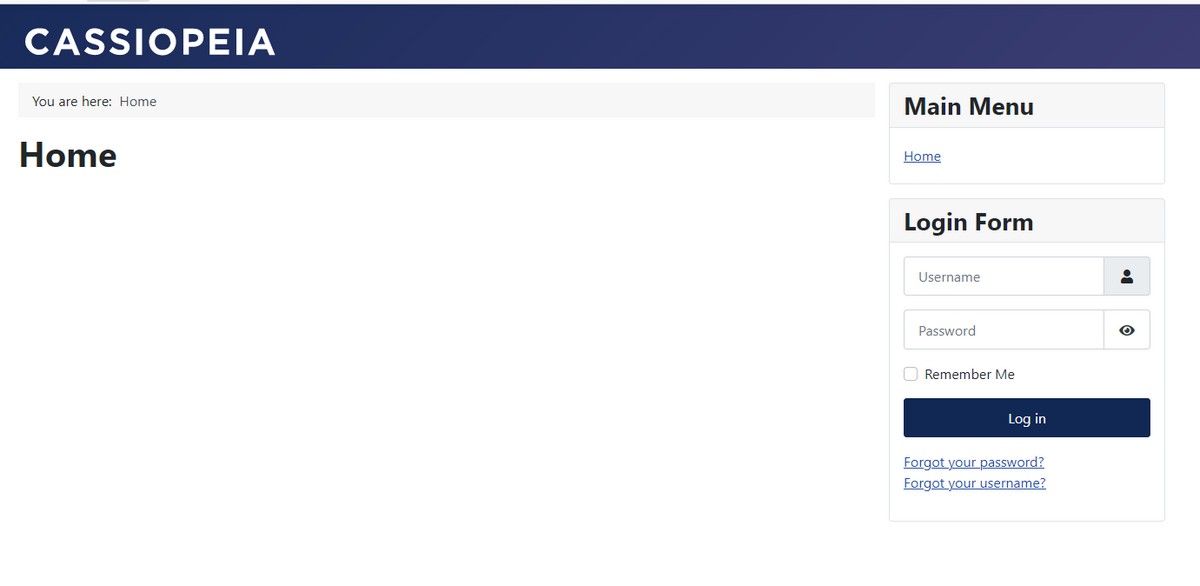
Fig. 1.2.7 - Joomla 4 - Site Home Page